


My kid came home yesterday asking about how computers work for some school project. I’m sitting there trying to explain it without sounding like a complete nerd, and I realized – most people have no clue what’s actually happening inside these things.
I’ve been fixing computers since Windows 95 was new. Back then, if something broke, you actually had to understand how it worked to fix it. Now everything’s hidden behind fancy interfaces, but the basic block diagram of computer systems hasn’t changed much.
[ez-toc]
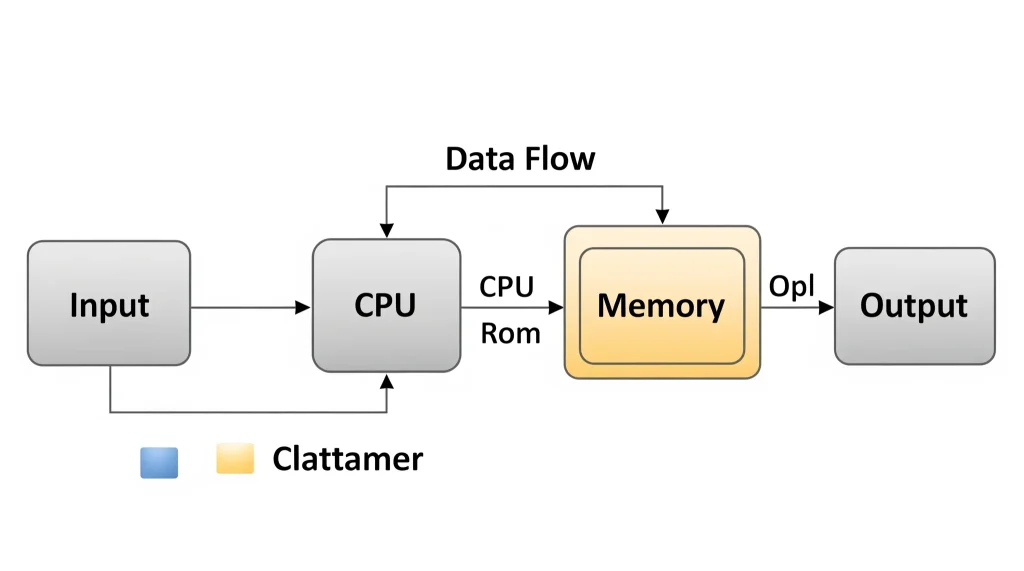
What Even Is This Block Diagram Thing
Okay so imagine you’re trying to explain how a car works to someone who’s never seen one. You could get into pistons and crankshafts and all that mechanical stuff. Or you could just say “gas goes in, engine burns it, wheels turn, car moves.” That’s basically what a block diagram does for computers.
When I first learned about block diagram of computer systems in some community college class twenty years ago, the instructor drew these boxes on a whiteboard with arrows between them. Input box, memory box, CPU box, output box. Looked simple enough. Then he started talking about instruction cycles and data paths and I’m thinking “wait, what happened to the simple boxes?”
But here’s the thing – once you get the block diagram of computer architecture, you really get it. Every computer from your phone to those massive servers running Facebook follows the same basic pattern. The IEEE Computer Society has excellent resources explaining these fundamental concepts if you want to dive deeper into the technical specifications.
The Guts of Every Computer
I don’t care if you’re looking at a $200 Chromebook or one of those $5000 gaming monsters with LED lights everywhere – they all have the same basic parts doing the same basic jobs.
Input stuff – keyboard, mouse, touchscreen, microphone, camera, whatever. This is how you tell the computer what you want it to do.
Memory and storage – where the computer keeps things. This one trips people up because there’s actually two different types and they work totally different.
CPU – the brain. Does all the actual thinking and calculating.
Output stuff – screen, speakers, printer. How the computer shows you what it figured out.
Control system – keeps everything coordinated so it doesn’t turn into chaos.
Getting Data Into the Machine
Your computer is basically deaf, dumb, and blind. It doesn’t understand English or mouse clicks or anything humans do naturally. Everything has to get translated into binary code first.
I remember helping my mom learn computers in the late 90s. She’d get so frustrated when the computer “didn’t understand” what she wanted. I had to explain the block diagram of computer input process – when she types the letter A, the computer doesn’t see the letter A. It sees the number 65, which gets converted to 01000001 in binary. The computer doesn’t know what the letter A is – it just knows that pattern of 1s and 0s.
This caused me endless headaches when I worked tech support. People would call saying their keyboard was “typing the wrong letters” and I’d have to figure out if it was a hardware problem, driver issue, or just wrong language settings. Usually it was the language settings, but try explaining that to someone who’s already frustrated.
Memory Is Confusing as Hell
This is where I lost most people back when I taught basic computer classes at the library. RAM versus storage. They sound like the same thing but they’re completely different.
RAM is like your kitchen counter. When you’re cooking, you pull ingredients out of the pantry and fridge and spread them on the counter where you can reach them easily. Fast access, but limited space. And when you’re done cooking, you clean off the counter – everything goes back where it came from or gets thrown away.
Storage is like the pantry and fridge. Lots of space, things stay there until you deliberately remove them, but you can’t work directly with stuff while it’s stored away.
This is why your computer “forgets” everything when it crashes or loses power. Anything that was just in RAM – your unsaved document, that YouTube video you were watching, whatever – it’s gone. Only stuff that was actually saved to storage survives.
I learned this the hard way in college. Spent all night writing a paper on my roommate’s computer, fell asleep at the keyboard, woke up to a blue screen. Paper was gone. Had to start over. Still makes me twitchy thinking about it.
CPU Block Diagram Breakdown
The CPU is where it gets interesting. This little square of silicon can execute literally billions of instructions per second. When people ask me to explain block diagram of computer processing, this is the part that usually blows their minds.
Understanding the block diagram of CPU components is crucial – it’s like knowing the engine parts of your car. provides detailed CPU architecture specs if you want the technical deep-dive.
Control Unit Does Traffic Management
Think about the busiest intersection in your city during rush hour. Now imagine one person standing in the middle directing all the traffic with perfect timing so nobody crashes and everything flows smoothly. That’s what the control unit does.
It grabs instructions from memory one at a time, figures out what each instruction means, then tells every other part of the computer what to do. Fetch an instruction, decode it, execute it, repeat. Billions of times per second.
I’ve seen what happens when this goes wrong. Had a computer once where the CPU was overheating and the control unit started getting confused about instruction timing. Programs would start normally, then suddenly freeze, then jump ahead randomly like someone was hitting fast-forward and pause randomly. Drove me nuts until I figured out it was a cooling problem.
ALU Is the Math Department
ALU stands for Arithmetic Logic Unit but really it just does math and makes simple yes/no decisions. Every calculation your computer ever does happens here.
But here’s what’s crazy – it can only do really basic operations. Add two numbers. Subtract. Compare if one number is bigger than another. Basic logic operations like AND, OR, NOT.
So how does it handle complex stuff like video games or photo editing? Speed. It does those simple operations so incredibly fast that complexity emerges from billions of simple steps.
I remember trying to explain this to my nephew who was maybe 12 at the time. He couldn’t understand how something that can only add and subtract could play his video games. So I had him do long multiplication by hand – break it down into just addition steps. Same idea, but the computer does it millions of times faster.
Registers Are Like Sticky Notes
Registers are tiny storage spots right inside the CPU. Super fast but they only hold a few bytes each. The CPU uses them like you might use sticky notes on your monitor – quick reminders of what you’re working on.
There’s one called the accumulator that holds calculation results. Another called the program counter that keeps track of which instruction comes next. Most people never need to know this stuff exists, but it’s running constantly in the background.
Full Computer System Layout
Modern computers have way more stuff than those basic five components. I built my first computer in 2001 and it was pretty straightforward – CPU, RAM, hard drive, graphics card, done. Now there’s cache memory, multiple CPU cores, integrated graphics, WiFi chips, USB controllers, and a bunch of other specialized components.
The block diagram of computer system architecture has evolved significantly. What used to be simple is now incredibly complex, but the fundamental data flow remains the same.
Cache Memory Speeds Things Up
Cache exists because the CPU is way faster than RAM. Without cache, the CPU spends most of its time waiting around for data to arrive from memory. It’s like having a race car stuck behind a school bus.
Cache is basically really fast memory that sits between the CPU and regular RAM. The computer tries to predict what data you’ll need next and keeps it in cache. When it guesses right, everything runs faster. When it guesses wrong, you wait while it goes back to regular memory.
I think of it like keeping frequently used tools within arm’s reach instead of walking to the toolbox every time. Works great until you need that one specialized tool you only use occasionally.
Bus System Moves Data Around
Your computer has three main data highways connecting everything together:
Data bus carries the actual information – like trucks carrying cargo on a highway. Wider buses can carry more data at once.
Address bus tells data where to go – like GPS coordinates for every piece of information.
Control bus manages timing and coordination – like traffic signals keeping everything flowing smoothly.
When computers get slow, often it’s because one of these buses is overloaded. Too much data trying to move at once and everything backs up.
Finding Good Study Materials
Students always ask where to find decent block diagram of computer PDF files for studying. Honestly, most textbooks overcomplicate it and most websites oversimplify it.
Best resources I’ve found are university course websites. Professors often post lecture slides that have clearer diagrams than published textbooks. Look for computer architecture or computer organization courses from good schools like MIT.
For official specifications and detailed block diagram of computer PDF documentation, check out manufacturer resources like AMD’s developer guides, These provide the most accurate technical diagrams.
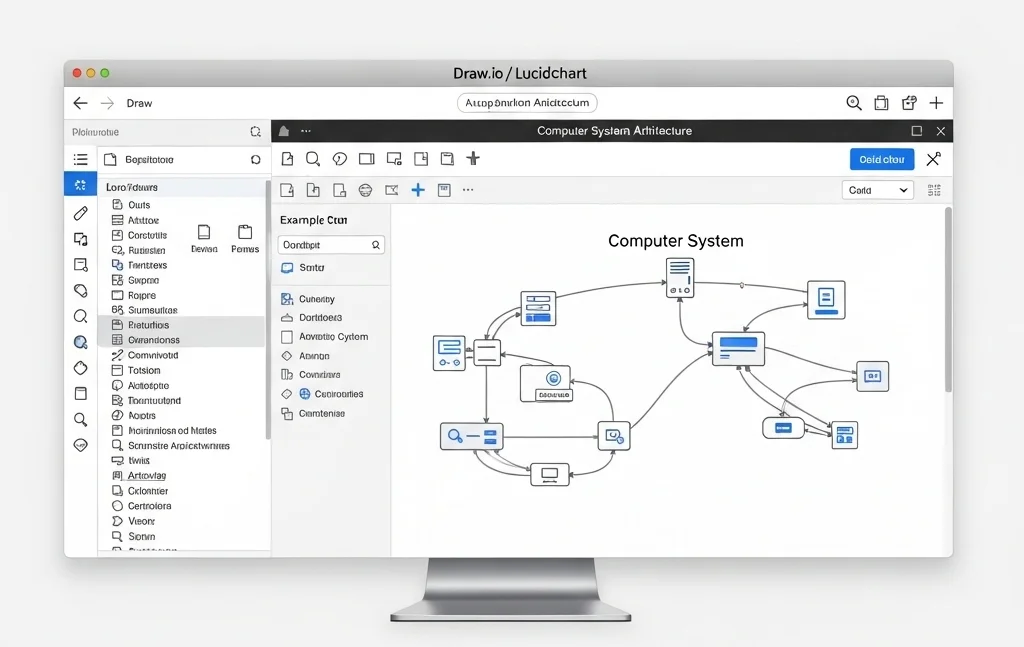
But really, drawing your own diagrams helps more than reading other people’s. Use whatever – PowerPoint, Google Drawings, even pencil and paper. The act of figuring out how to draw the connections forces you to understand them.
Troubleshooting with Block Diagrams
Knowing how data flows through a computer helps you figure out what’s wrong when things break.
Last week my neighbor brought over his laptop complaining it was “running slow.” Task manager showed normal CPU usage but high memory usage. The block diagram told me the story – data was getting bottlenecked in memory, not processing.
Sure enough, he had 47 browser tabs open and was running three different video chat programs simultaneously. Closed some tabs, quit unnecessary programs, problem solved.
Common issues:
- Slow but low CPU usage = usually memory or storage bottleneck
- Random freezing = control unit getting overwhelmed
- Weird glitches = data corruption on buses
- Overheating = CPU working too hard
Understanding the flow helps you ask the right questions instead of just randomly trying fixes.
Modern Computers Are Getting Complicated
That basic block diagram I learned doesn’t really apply to current computers. Everything’s gotten more complex.
Multiple cores – Your laptop probably has 4 or 8 CPU cores. Each has its own processing units but they share memory. Like having multiple workers sharing the same workspace.
Graphics cards – Specialized processors with hundreds of small cores. Great for graphics and AI, terrible for general computing.
Phone processors – Pack everything into one chip. CPU, graphics, cellular modem, WiFi, even AI processors all crammed together.
What’s Coming Next
I’ve watched computer technology change for 25 years. Things are getting weird again.
Quantum computers use quantum bits instead of regular bits. Can be 1 and 0 simultaneously which breaks everything we know about computing. The math makes my head hurt.
AI chips are becoming standard. Your phone probably has dedicated AI processing already.
Storage and memory are merging. New technologies that are as fast as RAM but permanent like storage would change everything.
Bottom Line
You don’t need to understand every detail but knowing the big picture helps enormously. When something breaks, you can make educated guesses. When buying computers, you know which specs actually matter.
The basic block diagram of computer systems hasn’t changed much in 50 years because it works. Input, processing, memory, output. Everything else is variations on that theme.
Understanding the block diagram of computer architecture gives you a foundation for troubleshooting, upgrading, and making informed technology decisions. For more advanced learning, explore resources like computer architecture courses
Draw some diagrams yourself. Watch task manager to see what your computer’s actually doing. You’ll start recognizing patterns and understanding why computers behave like they do.
And maybe you can help your own kid with their computer science homework without feeling like a dinosaur.
[VIDEO SUGGESTION: Time-lapse of someone building a computer with components labeled according to block diagram]


